

Enhance your videos with Free Liquid Glass Lower Thirds for Premiere Pro, a modern title graphics resource designed to give your videos a clean, sophisticated, and professional appearance. Inspired by the liquid glass and glassmorphism design aesthetic, these lower thirds can help you introduce speakers, display names and job titles, identify interview subjects, highlight important information, and add elegant text overlays to your video projects.
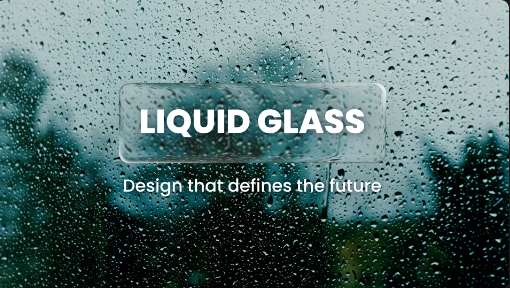
Lower thirds are an essential element of video editing because they provide useful information without taking over the entire screen. By combining readable typography with translucent glass-inspired panels, subtle reflections, smooth animation, and contemporary layouts, liquid glass lower thirds can complement a wide range of video styles. Whether you are creating YouTube videos, interviews, podcasts, corporate presentations, documentaries, educational content, or promotional campaigns, this Free Liquid Glass Lower Thirds template can provide a stylish starting point for your editing workflow.
Designed for Premiere Pro users, this resource is particularly useful for creators who want to incorporate modern interface-inspired graphics into their videos. Depending on the original template's features and format, you may be able to customize text, colors, positioning, animation timing, and other supported design elements to match your project's visual identity.
The liquid glass aesthetic draws inspiration from contemporary digital interfaces, where transparent surfaces and light effects are used to create a refined visual appearance. When adapted for video titles, this style can make names, labels, captions, and supporting information feel integrated with the footage instead of appearing as ordinary text placed over the image.
A well-designed lower third should balance visual appeal with readability. Glass-inspired elements can provide a distinctive appearance, but the text must remain clear against different backgrounds. This makes liquid glass lower thirds especially useful for creators who want modern graphics without sacrificing the clarity of their message.
Depending on the supplied files, this Free Liquid Glass Lower Thirds resource may be available as a Motion Graphics Template (MOGRT), an editable Premiere Pro project, or another compatible asset format. Check the original download details to confirm the file type and supported software version.
If the template is provided as a MOGRT file, you may be able to install it through Premiere Pro's Graphics Templates workflow and edit the available controls in the Properties panel. Depending on how the template was created, these controls may include text fields, colors, size adjustments, or animation options.
If the download includes a project file or additional assets, follow the included instructions to locate the required media and dependencies. Always confirm compatibility before using the template in a production project.
For talking-head videos, a subtle glass panel can introduce the presenter without distracting viewers from the main footage. For tutorials, use title overlays to identify tools, explain steps, or emphasize important information. For product reviews, lower thirds can display product names, specifications, or short descriptions where appropriate.
Consistency is important when creating a series of videos. Reusing a coordinated lower thirds style can help establish a recognizable visual identity across your channel. Keep the animation timing, typography, and placement consistent so that viewers can focus on the content.
Use these graphics to display a speaker's name and professional role during interviews, panel discussions, webinars, or documentary sequences. For podcasts recorded on video, lower thirds can introduce guests and provide relevant details without interrupting the conversation.
For documentary work, consider using a restrained glass effect that complements the subject matter. Keep the information concise and allow enough time for viewers to read each title. If the footage contains bright highlights or complicated backgrounds, use available background-opacity or contrast controls, where supported, to maintain legibility.
Glass-inspired title graphics can complement technology companies, software demonstrations, digital products, innovation presentations, and modern brand campaigns. Use lower thirds to identify employees, introduce speakers, highlight departments, display product information, or provide supporting context during a presentation.
For corporate use, adapt the graphics to the company's brand colors and typography wherever the template allows it. Keep animations professional and avoid excessive reflections or movement that could compete with the speaker. A consistent set of lower thirds can help multiple videos feel connected and professionally produced.
For vertical videos, position the lower thirds carefully so that important text remains visible within the frame and is not obscured by platform interface elements. Keep names and descriptions short, choose readable text sizes, and avoid placing critical information too close to the edges.
If the original template was designed for a different aspect ratio, check whether its layout can be adapted to vertical content. You may need to adjust the scale, position, or composition to preserve the intended appearance. Preview the final video on a mobile screen before publishing.
Next, add the template to the timeline above your main video footage. Select the graphic and edit the available text fields to enter the speaker's name, title, or other relevant information. If the template provides customization controls, adjust the colors, scale, position, and animation settings to suit your project.
Preview the graphic against the actual footage rather than judging it in isolation. Translucent panels can appear different depending on the brightness, colors, and movement in the background. Adjust the placement and contrast where supported to ensure that the text remains easy to read.
Finally, review the entrance and exit animations, check the spelling of all text, and play the sequence at full speed. Save your project before making significant changes, and export a short test clip if you need to verify the appearance and playback quality.
Use transparency carefully. Glass effects should complement the video without making names and titles difficult to read. A stronger panel opacity may be helpful when footage is particularly busy.
Keep the animation subtle. Smooth entrances and exits generally work better for informational graphics than excessive movement. Match the animation speed to the pace of your video.
Maintain consistent placement. Use a repeatable position and alignment for speaker names and titles across the project, while keeping important visual content unobstructed.
Match your brand identity. If the template allows customization, adapt the typography and colors to suit your channel, business, or campaign.
Respect mobile safe areas. For vertical and square videos, avoid positioning text where platform controls or captions may cover it.
Check every title. Verify spelling, capitalization, names, and professional designations before rendering the final video.
Beginners can use compatible templates to add professional-looking titles without designing every graphic from scratch. Experienced editors can use a consistent lower thirds style to speed up production and maintain a coordinated appearance across multiple videos.
The template can support personal projects, educational content, business presentations, social media campaigns, and client productions, subject to the asset's licensing terms. Before using it commercially, review the original license and check whether any included fonts, plugins, or other third-party components have separate usage restrictions.
Explore Freevideofx for more Free Premiere Pro templates, MOGRT graphics, animated lower thirds, title animations, transitions, and motion graphics resources. Find creative assets that suit your editing workflow, customize the available elements, and create professional videos with a modern glass-inspired aesthetic.
Lower thirds are an essential element of video editing because they provide useful information without taking over the entire screen. By combining readable typography with translucent glass-inspired panels, subtle reflections, smooth animation, and contemporary layouts, liquid glass lower thirds can complement a wide range of video styles. Whether you are creating YouTube videos, interviews, podcasts, corporate presentations, documentaries, educational content, or promotional campaigns, this Free Liquid Glass Lower Thirds template can provide a stylish starting point for your editing workflow.
Designed for Premiere Pro users, this resource is particularly useful for creators who want to incorporate modern interface-inspired graphics into their videos. Depending on the original template's features and format, you may be able to customize text, colors, positioning, animation timing, and other supported design elements to match your project's visual identity.
What Are Liquid Glass Lower Thirds?
Liquid glass lower thirds are animated text overlays that use the visual language of translucent glass surfaces. They may feature semi-transparent panels, soft highlights, subtle blur, reflective edges, rounded shapes, and layered visual elements that create a sense of depth.The liquid glass aesthetic draws inspiration from contemporary digital interfaces, where transparent surfaces and light effects are used to create a refined visual appearance. When adapted for video titles, this style can make names, labels, captions, and supporting information feel integrated with the footage instead of appearing as ordinary text placed over the image.
A well-designed lower third should balance visual appeal with readability. Glass-inspired elements can provide a distinctive appearance, but the text must remain clear against different backgrounds. This makes liquid glass lower thirds especially useful for creators who want modern graphics without sacrificing the clarity of their message.
Designed for Adobe Premiere Pro
Adobe Premiere Pro is widely used for professional video editing, social media content, interviews, advertisements, and corporate productions. A Premiere Pro-compatible lower thirds template can help editors add consistent title graphics directly into their existing editing workflow.Depending on the supplied files, this Free Liquid Glass Lower Thirds resource may be available as a Motion Graphics Template (MOGRT), an editable Premiere Pro project, or another compatible asset format. Check the original download details to confirm the file type and supported software version.
If the template is provided as a MOGRT file, you may be able to install it through Premiere Pro's Graphics Templates workflow and edit the available controls in the Properties panel. Depending on how the template was created, these controls may include text fields, colors, size adjustments, or animation options.
If the download includes a project file or additional assets, follow the included instructions to locate the required media and dependencies. Always confirm compatibility before using the template in a production project.
Perfect for YouTube Videos and Content Creators
Free Liquid Glass Lower Thirds can add a polished visual identity to YouTube videos, creator introductions, tutorials, product reviews, reaction videos, interviews, and educational content. Use a lower third to introduce the presenter, display a guest's name, identify a topic, or highlight a key point during the video.For talking-head videos, a subtle glass panel can introduce the presenter without distracting viewers from the main footage. For tutorials, use title overlays to identify tools, explain steps, or emphasize important information. For product reviews, lower thirds can display product names, specifications, or short descriptions where appropriate.
Consistency is important when creating a series of videos. Reusing a coordinated lower thirds style can help establish a recognizable visual identity across your channel. Keep the animation timing, typography, and placement consistent so that viewers can focus on the content.
Ideal for Interviews, Podcasts, and Documentaries
Interviews and documentaries frequently require lower thirds to identify speakers, experts, contributors, and locations. A Free Liquid Glass Lower Thirds template can provide a contemporary alternative to traditional rectangular nameplates.Use these graphics to display a speaker's name and professional role during interviews, panel discussions, webinars, or documentary sequences. For podcasts recorded on video, lower thirds can introduce guests and provide relevant details without interrupting the conversation.
For documentary work, consider using a restrained glass effect that complements the subject matter. Keep the information concise and allow enough time for viewers to read each title. If the footage contains bright highlights or complicated backgrounds, use available background-opacity or contrast controls, where supported, to maintain legibility.
Modern Graphics for Corporate and Business Videos
Businesses and corporate video teams can use Free Liquid Glass Lower Thirds to create a consistent visual presentation across internal communications, company profiles, presentations, recruitment videos, training materials, and promotional content.Glass-inspired title graphics can complement technology companies, software demonstrations, digital products, innovation presentations, and modern brand campaigns. Use lower thirds to identify employees, introduce speakers, highlight departments, display product information, or provide supporting context during a presentation.
For corporate use, adapt the graphics to the company's brand colors and typography wherever the template allows it. Keep animations professional and avoid excessive reflections or movement that could compete with the speaker. A consistent set of lower thirds can help multiple videos feel connected and professionally produced.
Suitable for Social Media Reels and Short-Form Videos
Social media creators can use liquid glass title graphics in Instagram Reels, YouTube Shorts, TikTok videos, Facebook videos, and other short-form content. The translucent visual style can complement lifestyle videos, fashion content, technology reviews, travel edits, personal branding, and product promotions.For vertical videos, position the lower thirds carefully so that important text remains visible within the frame and is not obscured by platform interface elements. Keep names and descriptions short, choose readable text sizes, and avoid placing critical information too close to the edges.
If the original template was designed for a different aspect ratio, check whether its layout can be adapted to vertical content. You may need to adjust the scale, position, or composition to preserve the intended appearance. Preview the final video on a mobile screen before publishing.
Features of a Liquid Glass Lower Thirds Design
Depending on the original template's design and included controls, liquid glass lower thirds may incorporate several visual characteristics:- Translucent glass panels: Semi-transparent surfaces that allow the underlying footage to remain visible.
- Modern typography: Clean text styling for names, roles, headings, and short descriptions.
- Glass-inspired highlights: Subtle reflections and edge treatments that add visual depth.
- Animated entrances and exits: Movement that introduces or removes titles smoothly.
- Contemporary layouts: Carefully arranged text and graphic elements suited to modern video production.
- Customizable content: Editable fields or design controls, where provided, for adapting the titles to different projects.
- Reusable graphics: A consistent visual treatment that can be applied across multiple scenes and videos.
How to Use Liquid Glass Lower Thirds in Premiere Pro
Start by downloading the template and checking its file format, compatibility requirements, and installation instructions. If it is supplied as a MOGRT file, open Premiere Pro and use the available Graphics Templates controls to install or import it, following the workflow supported by your version of the application.Next, add the template to the timeline above your main video footage. Select the graphic and edit the available text fields to enter the speaker's name, title, or other relevant information. If the template provides customization controls, adjust the colors, scale, position, and animation settings to suit your project.
Preview the graphic against the actual footage rather than judging it in isolation. Translucent panels can appear different depending on the brightness, colors, and movement in the background. Adjust the placement and contrast where supported to ensure that the text remains easy to read.
Finally, review the entrance and exit animations, check the spelling of all text, and play the sequence at full speed. Save your project before making significant changes, and export a short test clip if you need to verify the appearance and playback quality.
Tips for Professional Glassmorphism Title Graphics
Prioritize readability. The purpose of a lower third is to communicate information. Use a clear font, appropriate text size, and sufficient contrast against the background footage.Use transparency carefully. Glass effects should complement the video without making names and titles difficult to read. A stronger panel opacity may be helpful when footage is particularly busy.
Keep the animation subtle. Smooth entrances and exits generally work better for informational graphics than excessive movement. Match the animation speed to the pace of your video.
Maintain consistent placement. Use a repeatable position and alignment for speaker names and titles across the project, while keeping important visual content unobstructed.
Match your brand identity. If the template allows customization, adapt the typography and colors to suit your channel, business, or campaign.
Respect mobile safe areas. For vertical and square videos, avoid positioning text where platform controls or captions may cover it.
Check every title. Verify spelling, capitalization, names, and professional designations before rendering the final video.
Who Can Use Free Liquid Glass Lower Thirds?
This Free Liquid Glass Lower Thirds template is useful for video editors, YouTubers, podcasters, interview producers, documentary filmmakers, corporate communications teams, social media managers, digital marketers, freelancers, and creative agencies.Beginners can use compatible templates to add professional-looking titles without designing every graphic from scratch. Experienced editors can use a consistent lower thirds style to speed up production and maintain a coordinated appearance across multiple videos.
The template can support personal projects, educational content, business presentations, social media campaigns, and client productions, subject to the asset's licensing terms. Before using it commercially, review the original license and check whether any included fonts, plugins, or other third-party components have separate usage restrictions.
Download Free Liquid Glass Lower Thirds for Premiere Pro from Freevideofx
Give your videos a contemporary visual style with Free Liquid Glass Lower Thirds for Premiere Pro. Whether you need elegant speaker introductions, modern interview graphics, polished YouTube titles, or sophisticated corporate overlays, liquid glass-inspired lower thirds can help you present information in a clean and visually consistent way.Explore Freevideofx for more Free Premiere Pro templates, MOGRT graphics, animated lower thirds, title animations, transitions, and motion graphics resources. Find creative assets that suit your editing workflow, customize the available elements, and create professional videos with a modern glass-inspired aesthetic.


