

Add dynamic movement, cinematic energy, and seamless visual flow to your videos with a Free Camera Transition Template designed for creative video editing and professional storytelling. Camera transitions help connect scenes through simulated or animated camera movements, creating a smooth progression from one shot to another. Whether you are editing travel films, cinematic montages, promotional videos, music videos, vlogs, or social media content, camera movement effects can make your footage feel more engaging and visually connected.
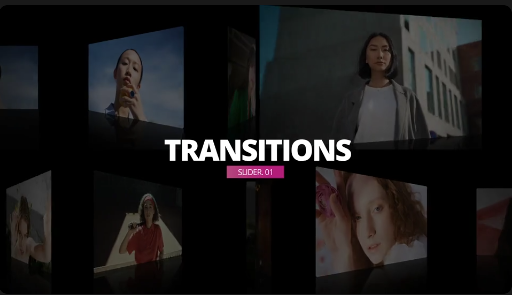
A camera transition can use movements such as rapid zooms, pans, rotations, push-ins, pull-outs, and directional shifts to move between clips. When applied thoughtfully, these effects create a sense of motion and continuity, helping different shots feel like parts of the same visual story.
With a Free Camera Transition Template for After Effects, editors can begin with pre-designed transition animations rather than creating every movement manually. Depending on the original project's features, you may be able to replace footage, adjust timing, customize selected motion settings, and adapt the transitions to suit your editing style.
Common styles include zoom transitions, whip pans, camera rotations, push transitions, pull-back movements, and fast directional changes. Some templates simulate a physical camera move, while others use animated scale, position, rotation, blur, or layered visual elements to create a similar impression.
A Free Camera Movement Transition can help editors introduce variety into their videos while maintaining a consistent visual rhythm. The best transition depends on the footage, the pace of the edit, and the mood you want to establish.
For travel films, a sweeping camera movement can connect different destinations or viewpoints. In cinematic montages, a rapid zoom or directional pan can move between scenes while maintaining energy. Promotional videos can use controlled camera-style transitions to reveal products, introduce features, or shift between different aspects of a brand.
A Free Cinematic Camera Transition Template can provide a useful foundation for these edits, especially when the original animation is designed to work across multiple clips. Before applying an effect, check the composition and movement of both shots so the transition feels natural rather than distracting.
Zoom transitions: These transitions use a rapid push-in or pull-out effect to connect shots. They can work well in travel montages, product videos, lifestyle edits, and energetic social media content.
Whip pan transitions: Fast horizontal or vertical movement creates a sense of speed and can help connect clips with similar motion directions.
Rotation transitions: Rotational movement can introduce energy and visual variety into music videos, creative montages, and experimental edits.
Push and pull transitions: These movements create the impression of moving closer to or farther away from the subject, helping scenes connect through changes in perspective.
Directional camera transitions: Movement across the frame can guide the viewer from one subject or scene to another while supporting a consistent editing rhythm.
Motion blur transitions: Blur can soften rapid movement and help conceal the switch between clips when the effect and footage are compatible.
The availability of these styles depends on the original asset. Review the template details to understand which transition effects are included.
A Free Camera Transition Template can also be useful for adventure videos, road trips, drone footage, outdoor activities, and lifestyle storytelling. For the most natural result, consider the direction and speed of movement in the source clips. For example, transitioning from a shot moving left to a shot with a similar visual direction can help preserve continuity.
Cinematic editors can combine camera transitions with color grading, music, sound effects, and carefully arranged footage to create a more immersive sequence. However, the transition should support the story rather than become the main attraction.
Businesses and marketers can incorporate camera movements into product showcases, advertisements, brand videos, and promotional campaigns. A zoom transition might introduce a product detail, while a sweeping movement can connect different scenes in a campaign.
Content creators can also use these effects in short-form videos for Instagram, YouTube, Facebook, and other social media platforms. When working with short videos, use transitions that complement the pacing without making the sequence difficult to follow.
Start by opening the project and reviewing its compositions, footage placeholders, and editing instructions. Replace the sample clips with your own footage, then check how the transition aligns with the beginning and ending of each shot.
Adjust the timing where supported to match the pace of your edit. Review the scale, position, rotation, and motion blur settings if these controls are exposed by the template. Ensure that the main subjects remain visible during the movement and that the transition does not reveal unwanted empty areas or edges.
For a cohesive result, consider the movement already present in your source footage. A transition that matches the direction of the camera or subject can feel more natural than one that introduces an unrelated movement.
Before exporting, preview the complete sequence to check for abrupt changes, flickering, awkward framing, missing media, or excessive blur. The exact customization options depend on the original project and its compatibility with your version of After Effects.
Use transitions with purpose: Apply camera movements to connect scenes, emphasize changes, or support the rhythm of your video rather than adding effects to every cut.
Maintain visual continuity: Similar movement directions and complementary compositions can help transitions feel more natural.
Control the intensity: Fast zooms and rotations can create excitement, but excessive movement may distract viewers or cause discomfort.
Synchronize with music: For music videos and energetic montages, align transitions with beats or important audio moments when appropriate.
Check the framing: Ensure that faces, products, logos, and other important details remain visible throughout the transition.
Balance motion blur: Blur can help smooth fast movement, but too much can obscure the subject and reduce image clarity.
Preview at full speed: A transition that looks effective when paused may feel too abrupt or too slow during playback.
Check the final export: Review the rendered video for visual glitches, unwanted black frames, and inconsistent movement.
Beginners can use pre-designed transitions as a starting point for learning motion-based editing, while experienced editors can adapt available animations to improve production efficiency. Travel creators can connect destination footage, businesses can enhance promotional videos, and filmmakers can introduce more dynamic movement into montages and scene changes.
These transitions can support a variety of creative styles, from subtle cinematic edits to energetic social media videos. The most effective result depends on the original template's capabilities, the source footage, and how carefully the effects are integrated into the edit.
Whether you are editing a travel montage, cinematic sequence, music video, vlog, product advertisement, or social media reel, camera transitions can help connect your footage with dynamic movement and a more polished visual flow.
Choose a transition style that complements your footage, review the project's software requirements, and customize the available settings to match your creative direction. With thoughtful timing, suitable source clips, and controlled movement, you can create engaging video sequences using resources from Freevideofx.
Discover Free Camera Transitions on Freevideofx and bring cinematic movement to your next creative project.
A camera transition can use movements such as rapid zooms, pans, rotations, push-ins, pull-outs, and directional shifts to move between clips. When applied thoughtfully, these effects create a sense of motion and continuity, helping different shots feel like parts of the same visual story.
With a Free Camera Transition Template for After Effects, editors can begin with pre-designed transition animations rather than creating every movement manually. Depending on the original project's features, you may be able to replace footage, adjust timing, customize selected motion settings, and adapt the transitions to suit your editing style.
What Is a Camera Transition?
A camera transition is a visual effect that connects two or more shots through camera-style movement or changes in perspective. Instead of switching directly from one clip to another, the transition introduces motion that guides the viewer from the outgoing shot into the next scene.Common styles include zoom transitions, whip pans, camera rotations, push transitions, pull-back movements, and fast directional changes. Some templates simulate a physical camera move, while others use animated scale, position, rotation, blur, or layered visual elements to create a similar impression.
A Free Camera Movement Transition can help editors introduce variety into their videos while maintaining a consistent visual rhythm. The best transition depends on the footage, the pace of the edit, and the mood you want to establish.
Create Smooth Cinematic Video Transitions
Camera movement transitions are useful for creating cinematic sequences that feel fluid and intentional. They can connect wide landscape shots, close-up details, moving subjects, architecture, city scenes, and lifestyle footage.For travel films, a sweeping camera movement can connect different destinations or viewpoints. In cinematic montages, a rapid zoom or directional pan can move between scenes while maintaining energy. Promotional videos can use controlled camera-style transitions to reveal products, introduce features, or shift between different aspects of a brand.
A Free Cinematic Camera Transition Template can provide a useful foundation for these edits, especially when the original animation is designed to work across multiple clips. Before applying an effect, check the composition and movement of both shots so the transition feels natural rather than distracting.
Explore Different Camera Transition Styles
Different camera movements create different visual impressions. Selecting the right style helps maintain the mood and pace of your video.Zoom transitions: These transitions use a rapid push-in or pull-out effect to connect shots. They can work well in travel montages, product videos, lifestyle edits, and energetic social media content.
Whip pan transitions: Fast horizontal or vertical movement creates a sense of speed and can help connect clips with similar motion directions.
Rotation transitions: Rotational movement can introduce energy and visual variety into music videos, creative montages, and experimental edits.
Push and pull transitions: These movements create the impression of moving closer to or farther away from the subject, helping scenes connect through changes in perspective.
Directional camera transitions: Movement across the frame can guide the viewer from one subject or scene to another while supporting a consistent editing rhythm.
Motion blur transitions: Blur can soften rapid movement and help conceal the switch between clips when the effect and footage are compatible.
The availability of these styles depends on the original asset. Review the template details to understand which transition effects are included.
Perfect for Travel Videos and Cinematic Montages
Travel creators can use camera transitions to connect landscapes, streets, hotels, landmarks, food experiences, and destination highlights. Dynamic movement helps maintain the energy of a travel montage while giving each shot a clear connection to the next.A Free Camera Transition Template can also be useful for adventure videos, road trips, drone footage, outdoor activities, and lifestyle storytelling. For the most natural result, consider the direction and speed of movement in the source clips. For example, transitioning from a shot moving left to a shot with a similar visual direction can help preserve continuity.
Cinematic editors can combine camera transitions with color grading, music, sound effects, and carefully arranged footage to create a more immersive sequence. However, the transition should support the story rather than become the main attraction.
Enhance Music Videos, Vlogs, and Promotional Content
Camera transitions are widely useful in fast-paced video formats where movement helps maintain visual interest. Music video editors can synchronize transitions with beats, changes in rhythm, or important moments in a track. Vlog creators can use them to connect locations, activities, and behind-the-scenes footage.Businesses and marketers can incorporate camera movements into product showcases, advertisements, brand videos, and promotional campaigns. A zoom transition might introduce a product detail, while a sweeping movement can connect different scenes in a campaign.
Content creators can also use these effects in short-form videos for Instagram, YouTube, Facebook, and other social media platforms. When working with short videos, use transitions that complement the pacing without making the sequence difficult to follow.
Customize Camera Transitions in Adobe After Effects
Adobe After Effects is a powerful application for creating motion graphics, compositing, camera-style movement, and visual effects. Depending on the original template's structure and features, you may be able to replace placeholder footage, adjust transition duration, customize selected movement settings, and modify supported visual effects.Start by opening the project and reviewing its compositions, footage placeholders, and editing instructions. Replace the sample clips with your own footage, then check how the transition aligns with the beginning and ending of each shot.
Adjust the timing where supported to match the pace of your edit. Review the scale, position, rotation, and motion blur settings if these controls are exposed by the template. Ensure that the main subjects remain visible during the movement and that the transition does not reveal unwanted empty areas or edges.
For a cohesive result, consider the movement already present in your source footage. A transition that matches the direction of the camera or subject can feel more natural than one that introduces an unrelated movement.
Before exporting, preview the complete sequence to check for abrupt changes, flickering, awkward framing, missing media, or excessive blur. The exact customization options depend on the original project and its compatibility with your version of After Effects.
Tips for Using Camera Transitions Effectively
Match the movement: Consider the direction, speed, and framing of the clips before choosing a transition.Use transitions with purpose: Apply camera movements to connect scenes, emphasize changes, or support the rhythm of your video rather than adding effects to every cut.
Maintain visual continuity: Similar movement directions and complementary compositions can help transitions feel more natural.
Control the intensity: Fast zooms and rotations can create excitement, but excessive movement may distract viewers or cause discomfort.
Synchronize with music: For music videos and energetic montages, align transitions with beats or important audio moments when appropriate.
Check the framing: Ensure that faces, products, logos, and other important details remain visible throughout the transition.
Balance motion blur: Blur can help smooth fast movement, but too much can obscure the subject and reduce image clarity.
Preview at full speed: A transition that looks effective when paused may feel too abrupt or too slow during playback.
Check the final export: Review the rendered video for visual glitches, unwanted black frames, and inconsistent movement.
Who Can Benefit from a Free Camera Transition Template?
A Free Camera Transition Template can be useful for video editors, filmmakers, YouTubers, travel creators, vloggers, social media influencers, music video producers, photographers, freelancers, and marketing teams.Beginners can use pre-designed transitions as a starting point for learning motion-based editing, while experienced editors can adapt available animations to improve production efficiency. Travel creators can connect destination footage, businesses can enhance promotional videos, and filmmakers can introduce more dynamic movement into montages and scene changes.
These transitions can support a variety of creative styles, from subtle cinematic edits to energetic social media videos. The most effective result depends on the original template's capabilities, the source footage, and how carefully the effects are integrated into the edit.
Explore Free Camera Transitions on Freevideofx
Looking for a Free Camera Transition Template for your next video project? Explore Freevideofx for creative video editing resources, motion graphics, transitions, visual effects, and templates that can support a wide range of production styles.Whether you are editing a travel montage, cinematic sequence, music video, vlog, product advertisement, or social media reel, camera transitions can help connect your footage with dynamic movement and a more polished visual flow.
Choose a transition style that complements your footage, review the project's software requirements, and customize the available settings to match your creative direction. With thoughtful timing, suitable source clips, and controlled movement, you can create engaging video sequences using resources from Freevideofx.
Discover Free Camera Transitions on Freevideofx and bring cinematic movement to your next creative project.


